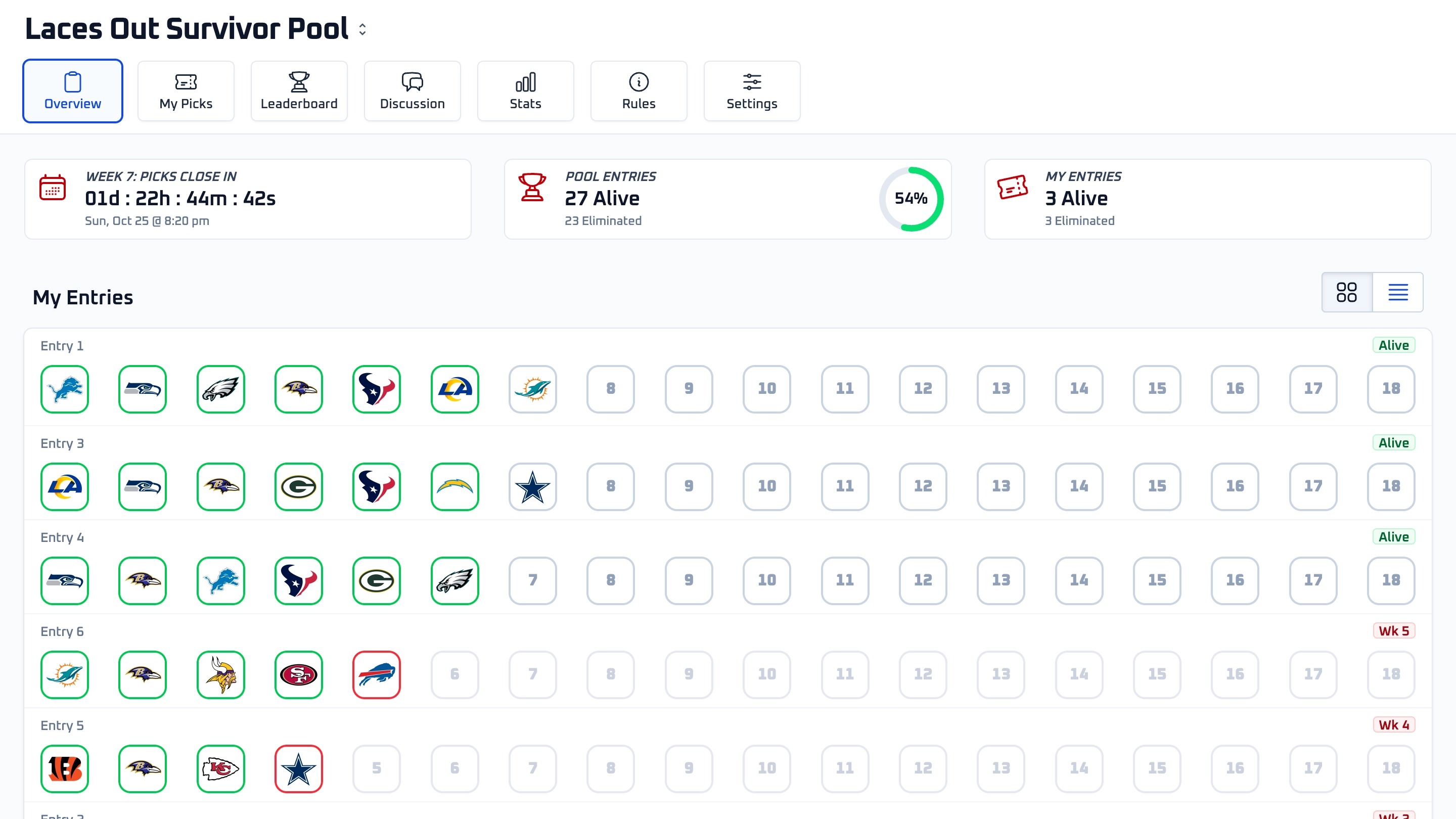
Pool Settings
Overview
Use Pool Settings to manage the key details and rules for your pool after it has been created.
You can update your pool name, welcome message, join link, optional password, game rules, and multi-pick weeks from here.
To access Pool Settings, open your pool and choose Settings from the pool navigation.
Pool Basics
Pool Basics is where you can update the pool name and manage your pool size.
Pool Name controls how the pool appears to entrants throughout My Survivor Pool.
Pool Size controls the total number of entries allowed across the whole pool. If your pool is full, entrants cannot add more entries until you increase the size.
Increasing your pool size is available from settings. If you upgrade later, the available upgrade options are based on the difference between your current pool size and the new one.
Welcome Message
The Welcome Message is shown to entrants on your pool page and included in the welcome email they receive after joining.
This is a good place to explain house rules, deadline reminders, pick expectations, or anything else entrants should know before making picks.
Join Link Settings
The Join Link section gives you one place to copy your pool's Join Link, reset the pool code, and manage the optional pool password.
Anyone with the Join Link can start the join process. If you add a pool password, entrants must enter that password after opening the link.
Resetting the pool code creates a new Join Link and deactivates the old one. Use this if an old link was shared too widely or you want tighter control over who can join.
Pool Rules
Pool Rules allow you to set when your pool starts, how many entries each person can have, when picks lock, how missed picks are handled, and what happens after losses or ties.
Start Week
The Start Week determines when your pool officially begins. Players can join and add entries at any time before or during the selected start week.
Once the start week has passed, the pool is automatically closed to new entries. You can adjust the Start Week setting later if you need to reopen your pool for additional entrants.
Max Entries per Player
This setting controls how many entries each individual player is allowed to create. For example, setting it to 3 allows each user to enter up to three times.
This is separate from your overall pool size. Pool size controls the total entries across everyone; max entries per player controls how many of those entries one person can own.
Pick Locking
The Pick Deadline setting controls when entrants must submit picks. If you choose a fixed deadline, picks lock at that deadline for the week.
If you leave the deadline unset, each team locks at kickoff. With that default behavior, the final game of the week is the last possible opportunity to make a pick, as long as at least one available team is still eligible for the entry.
Automatic Mulligans
Automatic Mulligans allow each entry in your pool to survive a certain number of losses before being eliminated. This changes your pool from traditional single-elimination to a more forgiving multi-loss format.
For example:
- Setting this to 0 = classic single elimination (1 loss = eliminated)
- Setting this to 1 = entries are eliminated after 2 losses
- Setting this to 2 = entries are eliminated after 3 losses
Hosts can still grant extra mulligans manually from entry management tools.
Auto Picking
Auto Picking automatically assigns a team to any entry that has not made a pick before the final pick opportunity of the week. This helps keep entries alive when participants forget to submit their picks.
When enabled, choose your preferred strategy for how the system selects a team:
- Most Picked Teams — selects from the teams most frequently chosen that week
- Least Picked Teams — selects from the teams least frequently chosen that week
- Random Team — selects any available team at random
- Disabled — no auto-picks will be made
When auto picking is disabled, missing picks will result in elimination or use a mulligan, if the entry has one.
Ties
You can decide whether tie games count as a win or a loss in your pool.
This setting is shown as Ties Count As. It applies to all picks moving forward, so set your preference before the season starts.
Multi-Pick Weeks
Multi-pick weeks let you require entrants to make more than one pick in selected weeks. For example, you can require 2 picks in Week 10 or 3 picks in Week 18.
Entrants must submit all required picks for that week. Every required pick must win for the entry to survive.
You can configure multi-pick weeks from the Multi-Pick Weeks section in Pool Settings. Weeks not listed there require one pick.