Making Picks
- Overview
- Creating Entries
- Editing Entry Names
- My Picks
- Making a Pick
- Changing or Removing Picks
- Pick Locking
- Multi-Pick Weeks
- Team Reuse
- Pick Visibility
- Missed Picks
- Mulligans
Overview
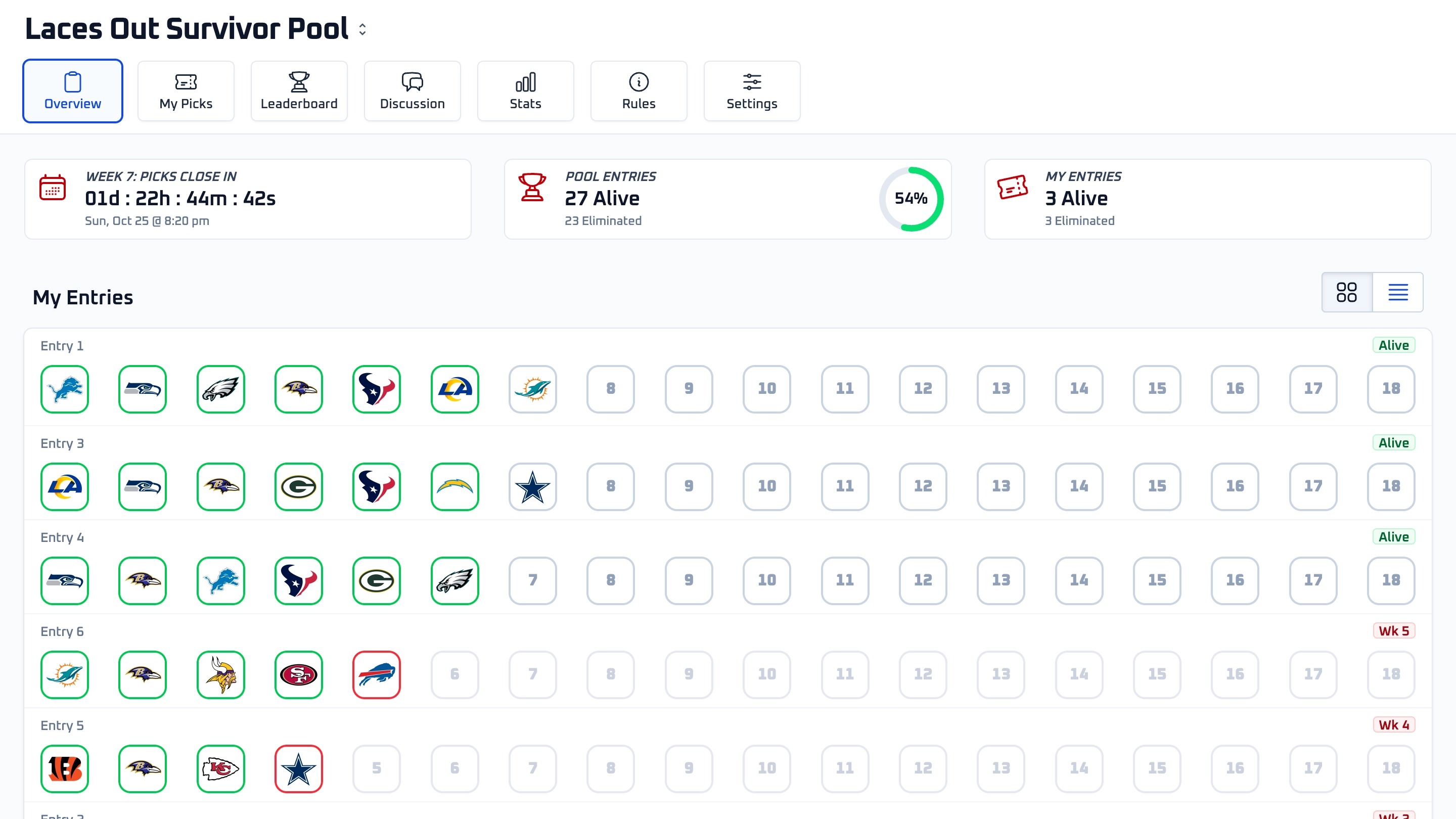
After joining a pool, you can create entries, make weekly picks, and track each entry throughout the season. Picks are managed from your pool page and from the dedicated My Picks view.
Each entry is managed separately. If you have more than one entry in a pool, make sure you are viewing the correct entry before submitting or changing picks.
Creating Entries
After joining a pool, you can add your first entry from the pool page. If the host allows multiple entries per person, you can create more than one entry.
Each entry gets its own picks, status, mulligans, and season history. A pick made for one entry does not apply to your other entries.
Editing Entry Names
You can name each entry when you create it. To edit an entry name later, use the pencil icon next to the entry name on the pool page.
Entry names are visible inside the pool, including on standings and entry lists.
My Picks
The My Picks view is the focused place to manage picks. Choose an entry and week, then use the games list to select a team.
On mobile, use the Games and My Picks tabs to switch between the weekly matchup list and your submitted picks. After a pick is saved, the page moves you back to the My Picks panel so you can confirm what was submitted.
Making a Pick
Open the week you want, click the team you want to pick, then confirm the pick. Once confirmed, the team appears in your My Picks list for that week.
The games list shows kickoff times in your timezone. Teams that are not eligible, have already started, or have already been used by that entry cannot be selected.
Changing or Removing Picks
You can change or remove an unlocked pick before it locks. In the My Picks list, unlocked picks show a remove icon.
Once a pick is locked by the pool deadline or the selected team's kickoff, it cannot be removed or changed by the entrant.
Pick Locking
If your pool uses a Pick Deadline, picks lock at that deadline for the week. If your pool does not use a fixed deadline, each pick locks at kickoff for the selected team's game.
With kickoff-based locking, the final game of the week is the last possible opportunity to make a pick for that week, as long as an eligible team remains available. With a fixed deadline, all picks must be submitted before that deadline.
Multi-Pick Weeks
Some pools require more than one pick in a week. When that happens, the picksheet shows how many picks are required, how many have been submitted, and how many are still missing.
Continue selecting teams until the week shows that all required picks have been submitted. Each submitted pick locks at the pool deadline if one is configured, or at that team's kickoff if the pool uses kickoff-based locking.
Team Reuse
Each entry can use a team only once during the season. If you already picked a team in an earlier week, that team will be disabled and labeled with the week when it was used.
Team usage is tracked per entry. If you have multiple entries, each entry has its own list of used teams.
Pick Visibility
To keep things fair, picks are hidden from other players until the selected team's game kicks off. After kickoff, picks are revealed on the leaderboard.
This ensures no one can see your pick and react to it before their own game starts.
Missed Picks
If you do not submit the required picks before eligible games have started, your entry may be eliminated for that week.
If the host has auto-picking enabled, an entry missing a pick will be assigned one at the deadline based on the auto-pick strategy chosen by the host.
My Survivor Pool sends reminder emails for missing picks, but reminders should not be your only plan. Check your pool before the games you intend to use have kicked off.
Mulligans
Some pools allow mulligans, which let an entry survive a losing pick. The number of mulligans and how they are granted depends on the pool's settings.
If automatic mulligans are enabled, they are applied when grading determines that an entry is eligible to use one. Hosts can also grant manual mulligans from the entry management tools.